Instagram Integration
Integrating Instagram with FahemAI allows your custom agent to communicate directly with customers via your Instagram pages. This integration also enables you to take over the conversation whenever you want and communicate with users yourself through Instagram's direct messaging. It provides a seamless and efficient way to handle inquiries and automate responses, while giving you the freedom to interact with your customers whenever you choose.
Getting an Instagram Business Account
To set up an Instagram Business Account, you need to create an Instagram account or use an existing one. Click here for more details.
Setting up Instagram for Connection
Step 1: Switch to a Professional Account
Follow this guide to switch your Instagram account to a Professional account. Conversion Guide.
Step 2: Allow Access to Messages
Follow this guide to allow access to messages. Access Guide.
Meta Developer Portal Setup
Before connecting to FahemAI, you need to set up an app on the Meta for Developers portal and link it to your Instagram Professional account.
Meta App Creation
- Create a new app on Meta for Developers.
- Choose Other > Business as the app type.
- Add the Instagram Graph API product to your app.
Configure Instagram Professional Account
- Ensure your Instagram account is a Professional (Business/Creator) account.
- Link your Instagram account to a Facebook Page.
- In Instagram settings under Messages and story replies, ensure Allow Access to Messages is enabled.
Get API Credentials
- In the Meta portal, go to App Settings > Basic to get your App ID and App Secret.
- Use the Graph API Explorer or App Dashboard to generate a long-lived Access Token with
instagram_manage_messagespermission.
Connecting in FahemAI
Once you have your credentials, follow these steps to integrate:
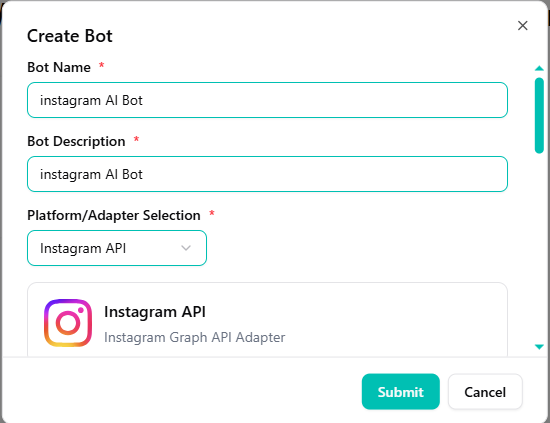
Select Instagram Adapter
- Go to the Bots list in your dashboard.
- Click on the (+) button.
- Select Instagram from the available options.
Configure Credentials
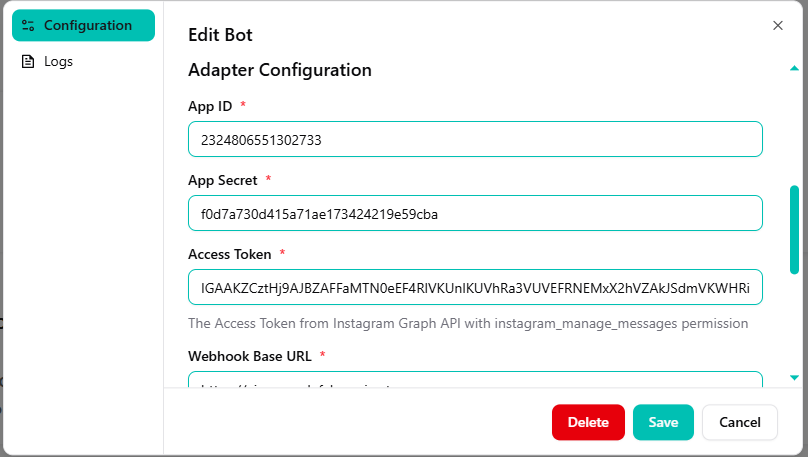
Enter the information from the Meta portal:
- Paste your App ID and App Secret.
- Paste your Access Token.
Set Webhook
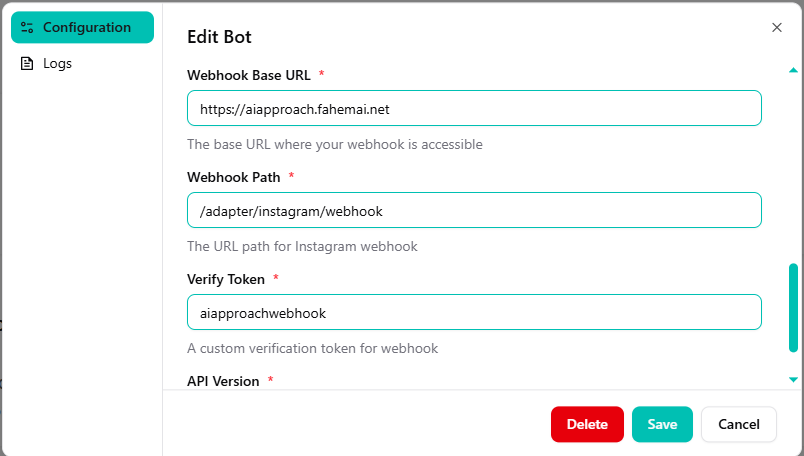
- Enter your Webhook Base URL.
- Set the Webhook Path (usually
/adapter/instagram/webhook). - Enter your Verify Token (e.g.,
aiapproachwebhook). - Set the API Version.
Save and Test
- Click Save to activate the integration.
- Now, send a DM to your Instagram account to test the AI's responses.
Success! Your bot is now live on Instagram. It will respond immediately to messages sent to your Professional account.
Need help? If you have any questions, feel free to reach out to us.