Knowledge Base Management
A Knowledge Base (KB) is a collection of documents, text snippets, and data that your AI agent uses to answer questions. It acts as the long-term memory for your bot.
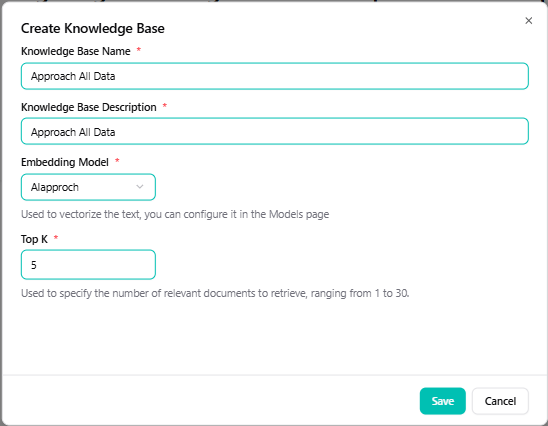
Creating a new Knowledge Base
- Navigate to the Knowledge section in the sidebar.
- Click the + (Plus) button to create a new KB.
- Enter a Name for your knowledge base (e.g., "Customer Support").
- Important: Select an Embedding Model. This model defines how your data is indexed.
Adding Data Sources
Once your Knowledge Base is created, you can add various types of data to train your agent.
1. Uploading Files
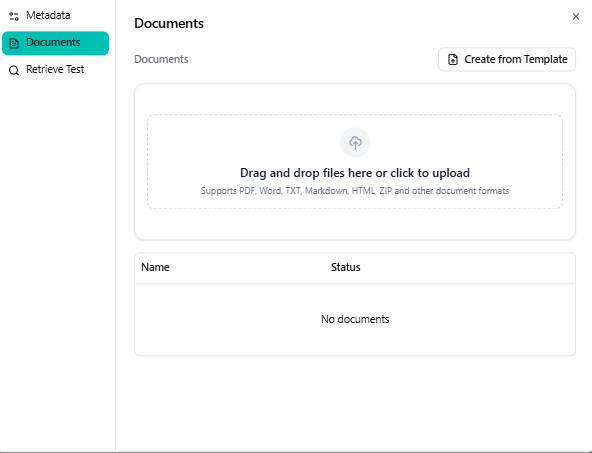
You can upload PDF, DOCX, TXT, and Markdown files.
- Click on your Knowledge Base.
- Select the Files tab (or "Upload" section).
- Drag and drop your files or click to browse.
2. Text Snippets
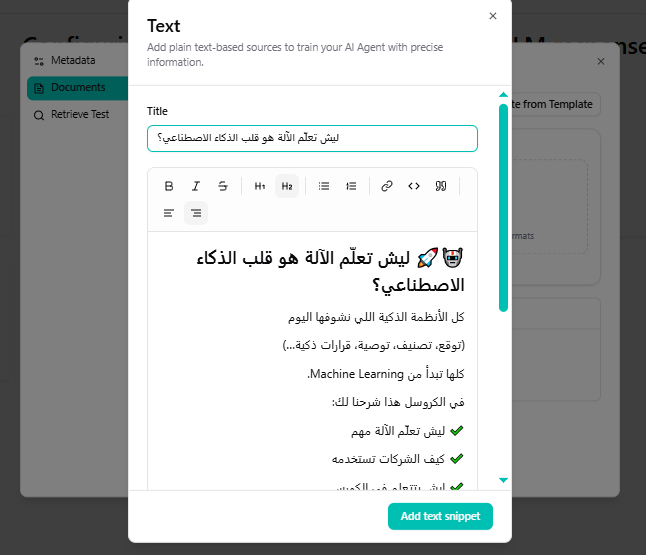
For quick FAQs or specific information, you can paste raw text.
- Select the Text tab.
- Enter a Title (optional) and the Content.
- Click Add.
Managing Your Data
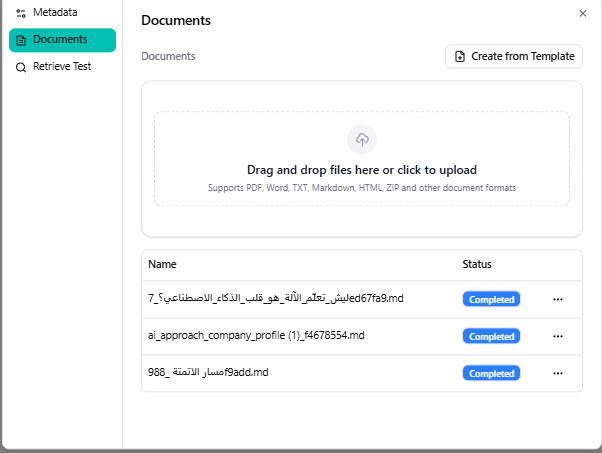
You can view, edit, or delete any document in your Knowledge Base.
- Status: Check if documents are "Indexed" (ready to use) or "Processing".
- Search: Use the search bar to find specific chunks of text within your KB to verify indexing.
Best Practices
- Chunking: The system automatically chunks large documents.
- Quality: Ensure your text is clear and factual for the best AI responses.
- Updates: If your business info changes, remember to update or delete old documents in the KB.